Set up your icons
There are two ways to put the icons on your Home Screen, and you can use both. Shortcuts works for every app and takes about a minute per app. Quick install adds icons for 115 popular apps in a few taps. The screenshots show iPhone; iPad works the same way.
- Before you start
- Shortcuts (every app)
- Quick install (popular apps)
- Wallpapers and widgets
- Undo
- Questions
Before you start
-
Download and unzip
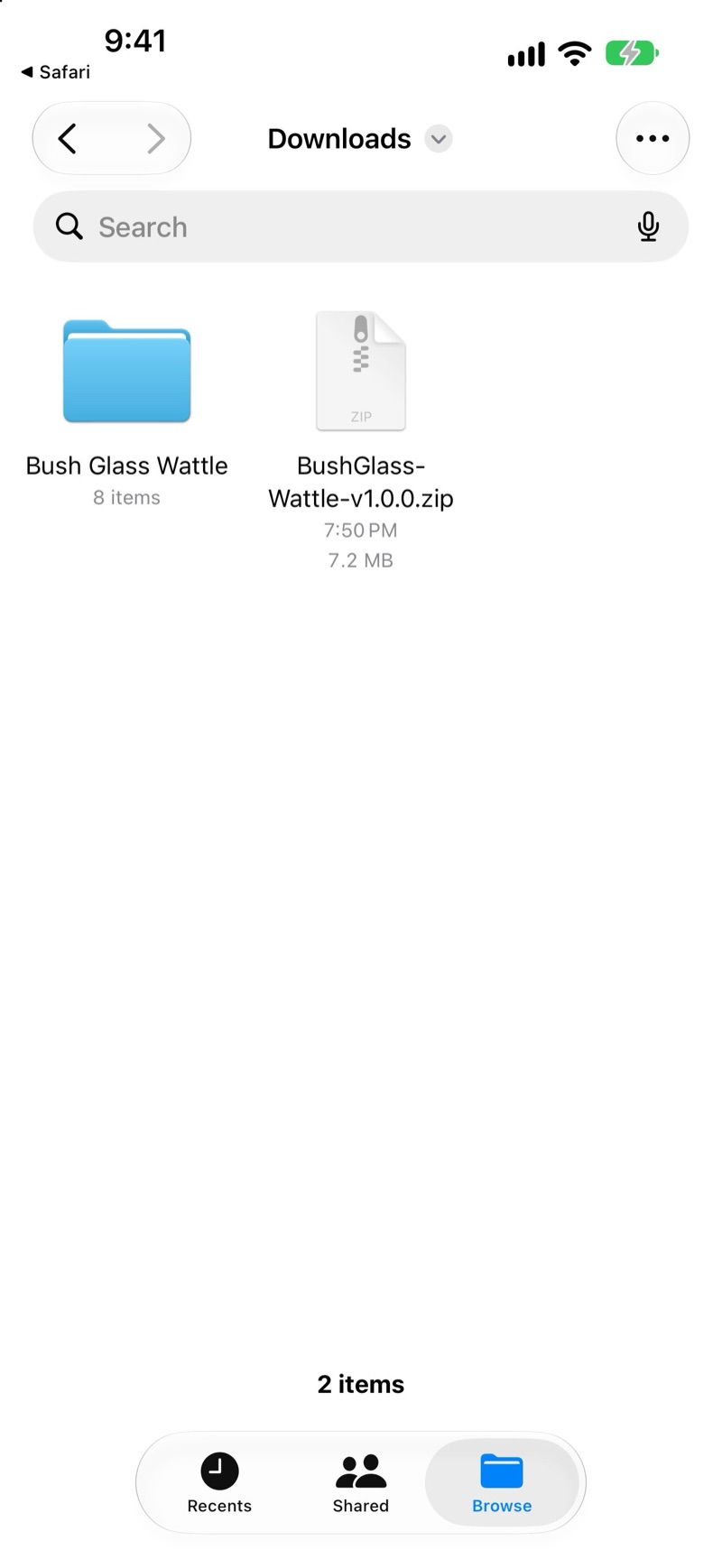
Download your colourway's ZIP from Etsy. Safari saves it to Downloads in the Files app. Tap the ZIP to unzip it.
-
Keep the folder in Files
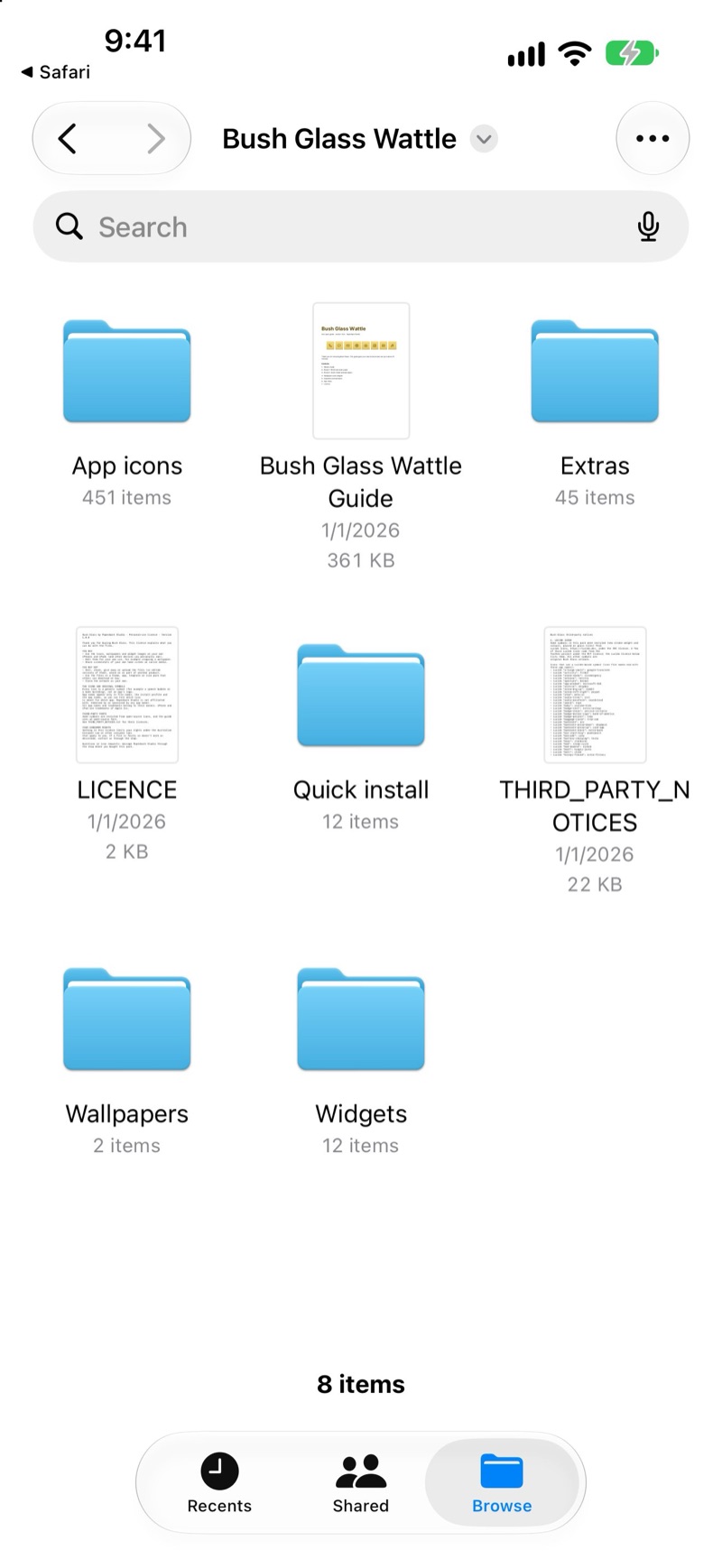
Inside are App icons, Extras, Quick install, Wallpapers, Widgets and a PDF guide. Keep the folder in Files, for example in iCloud Drive, so the icons are easy to find later.


Tip: set the wallpaper first, so you can see how the icons look as you go.
Shortcuts (every app)
Each icon is a small shortcut that opens its app. It works for every app in the pack.
-
Tap +
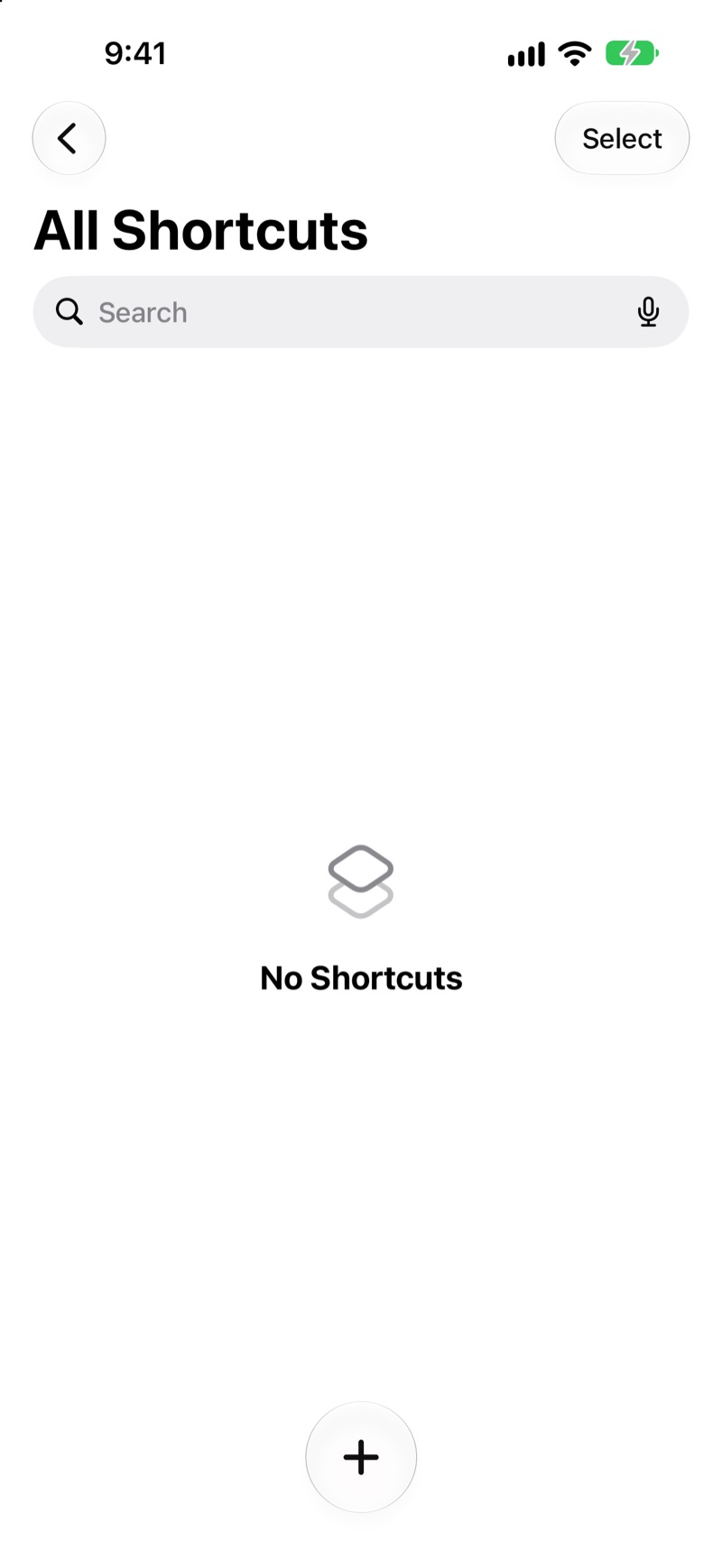
Open the Shortcuts app and tap +.
-
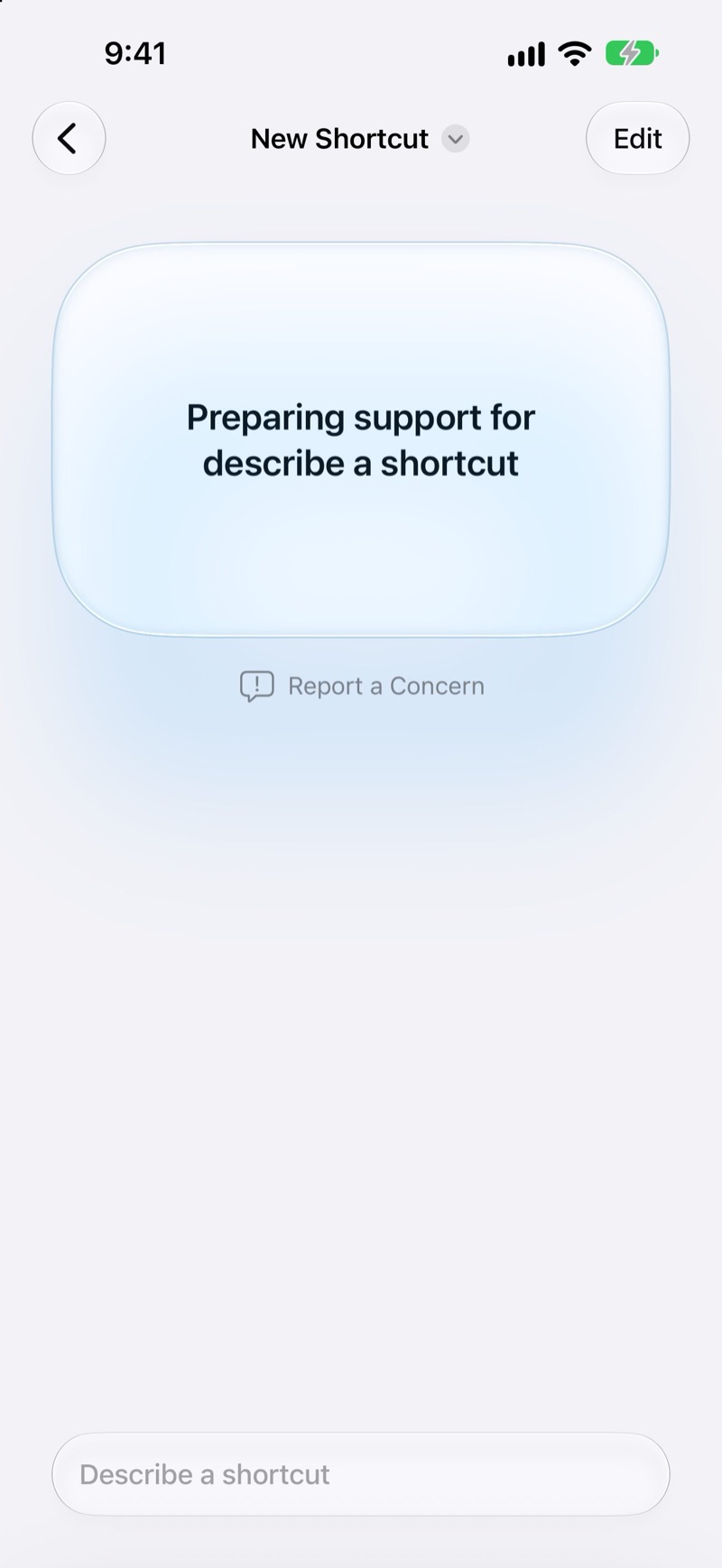
Tap Edit
Shortcuts first offers to describe a shortcut for you. Tap Edit at the top right to add the action yourself.
-
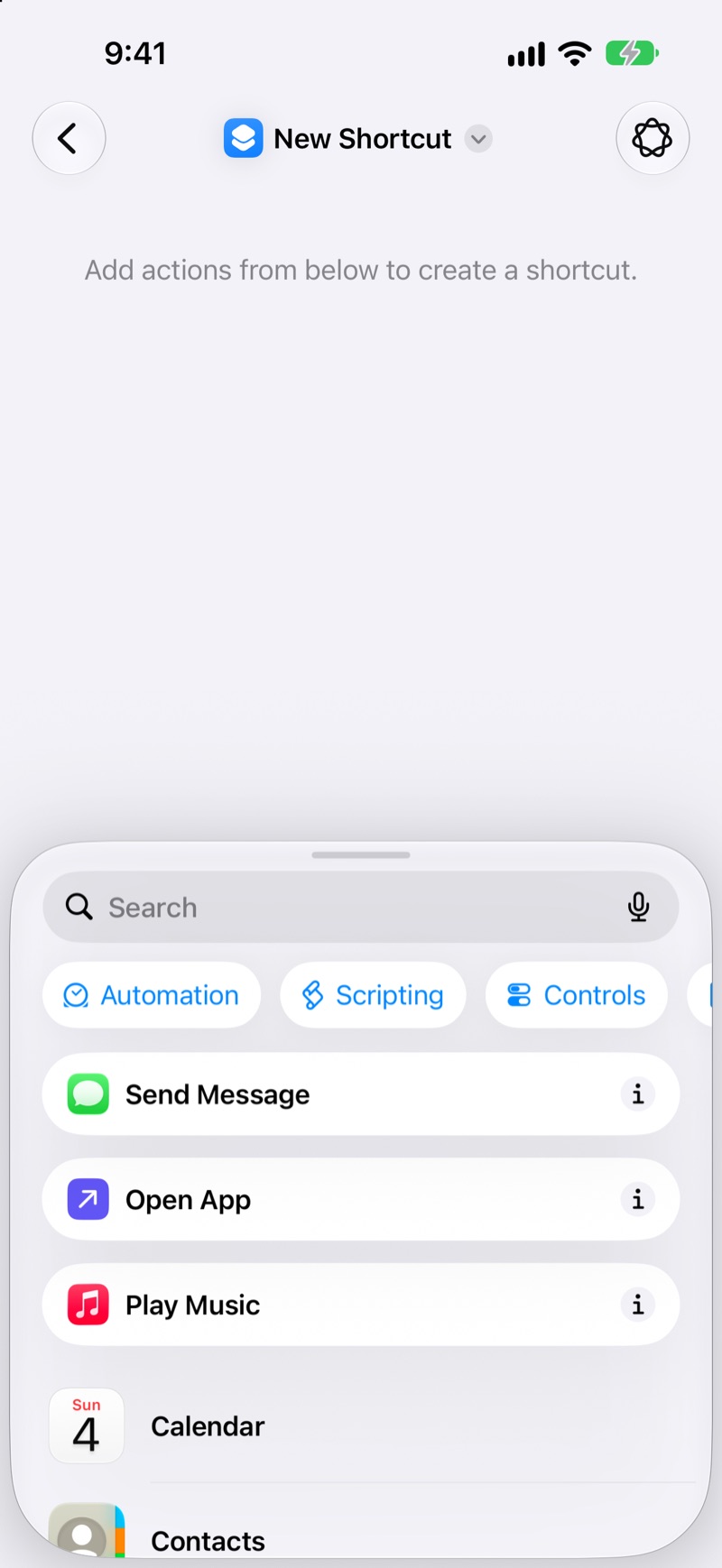
Add Open App
Tap Open App in the list of actions.
-
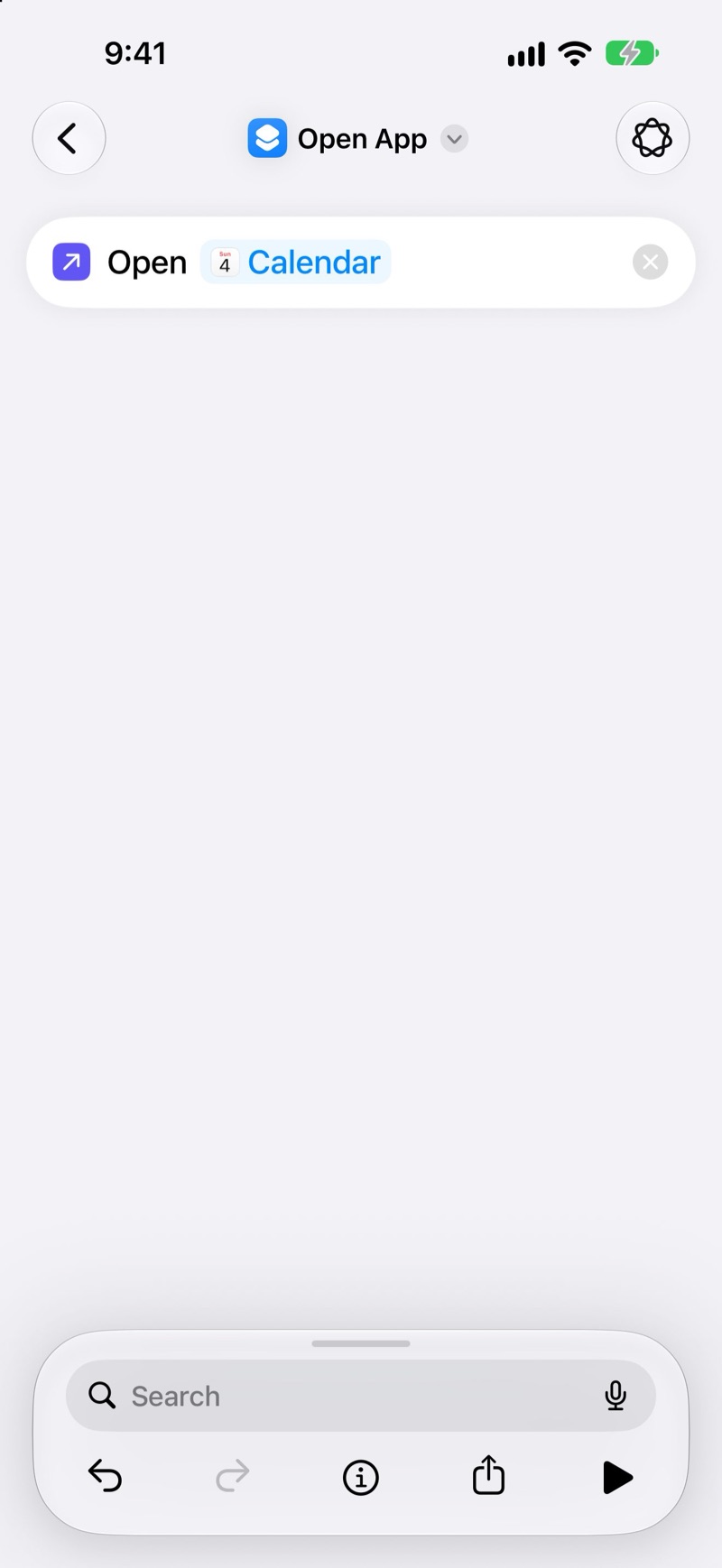
Choose the app
Tap the blue word App and choose the app this icon will open.
-
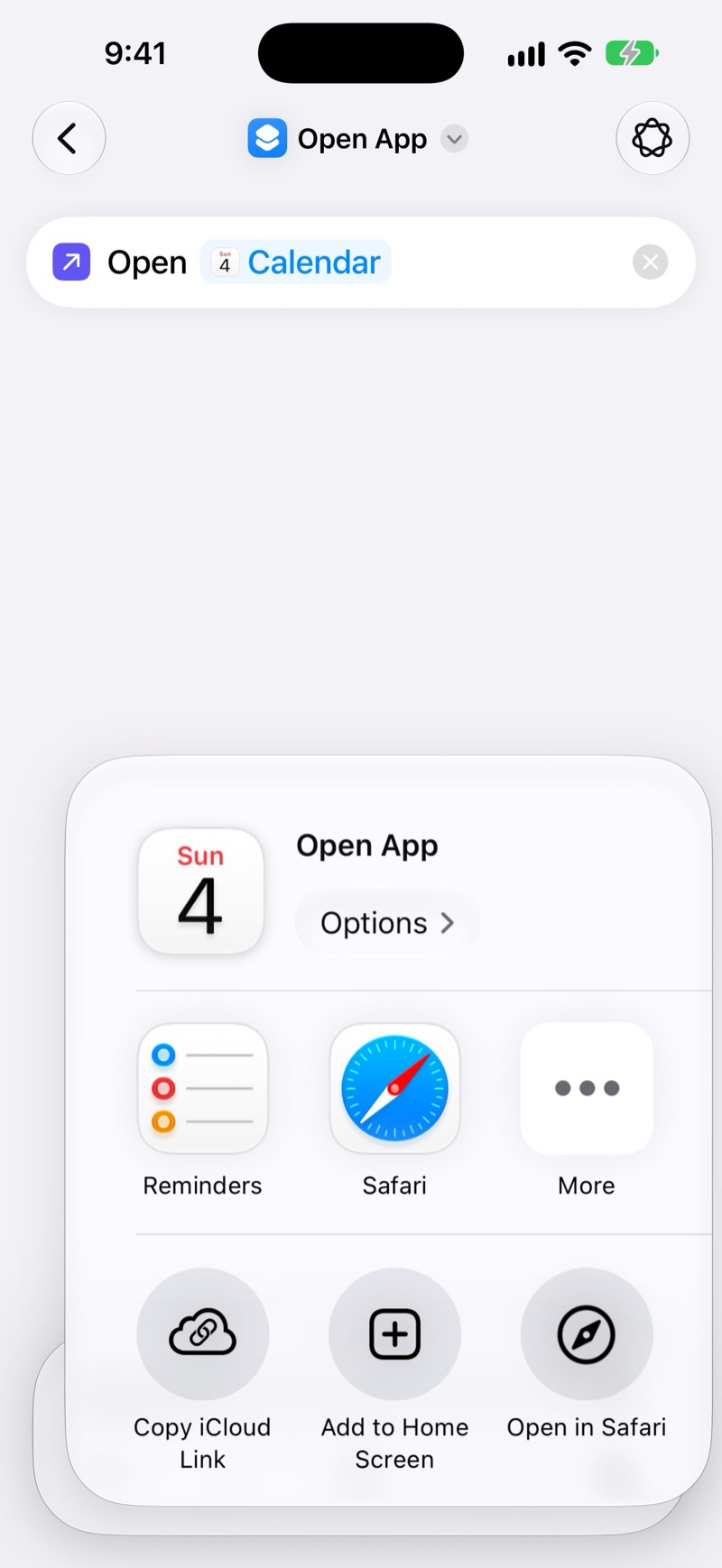
Add to Home Screen
Tap the share button at the bottom, then Add to Home Screen.
-
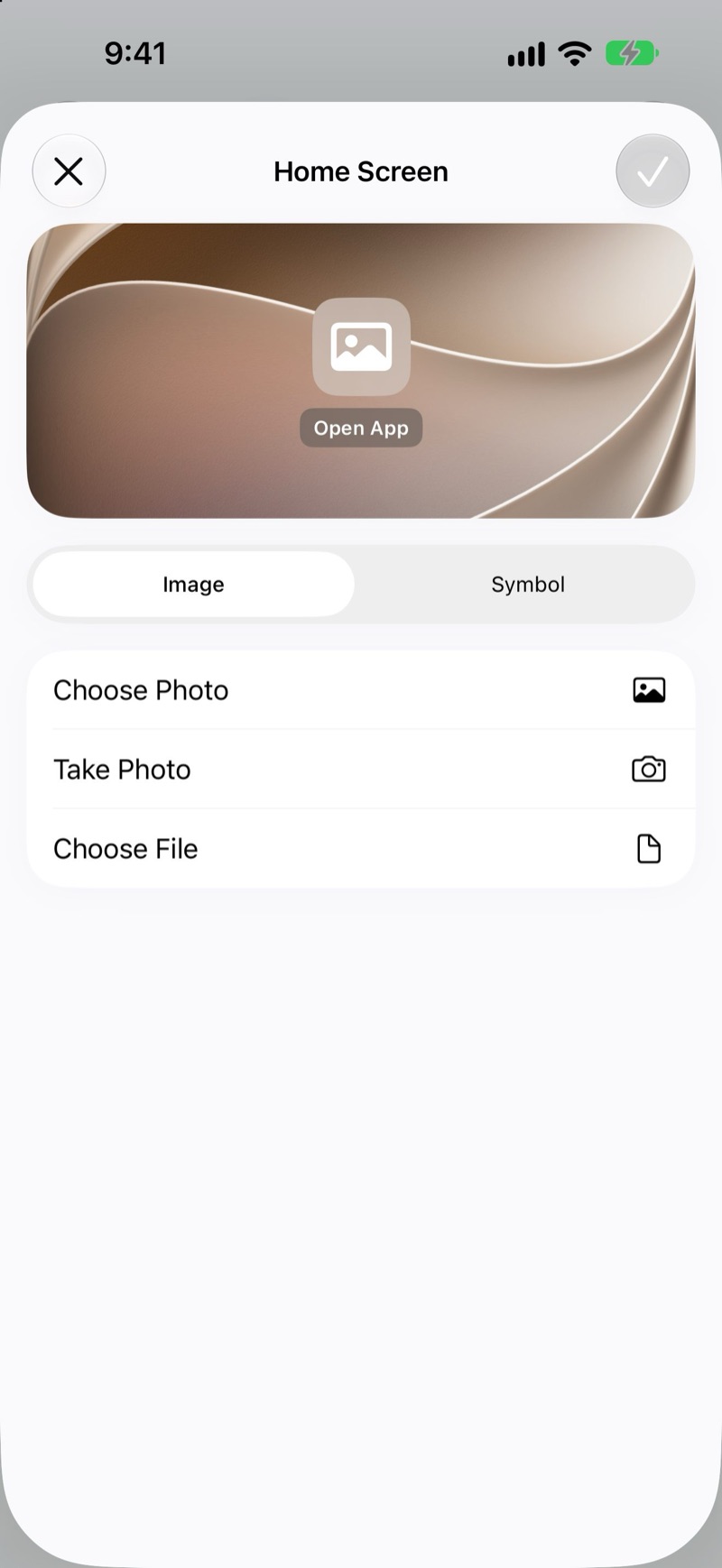
Pick the Bush Glass icon
Tap Image, then Choose File (or Choose Photo if you saved the icons to Photos). Search for the icon by name, for example wattle-calendar.png. The app index at the back of the guide lists every file name.
-
Name it and save
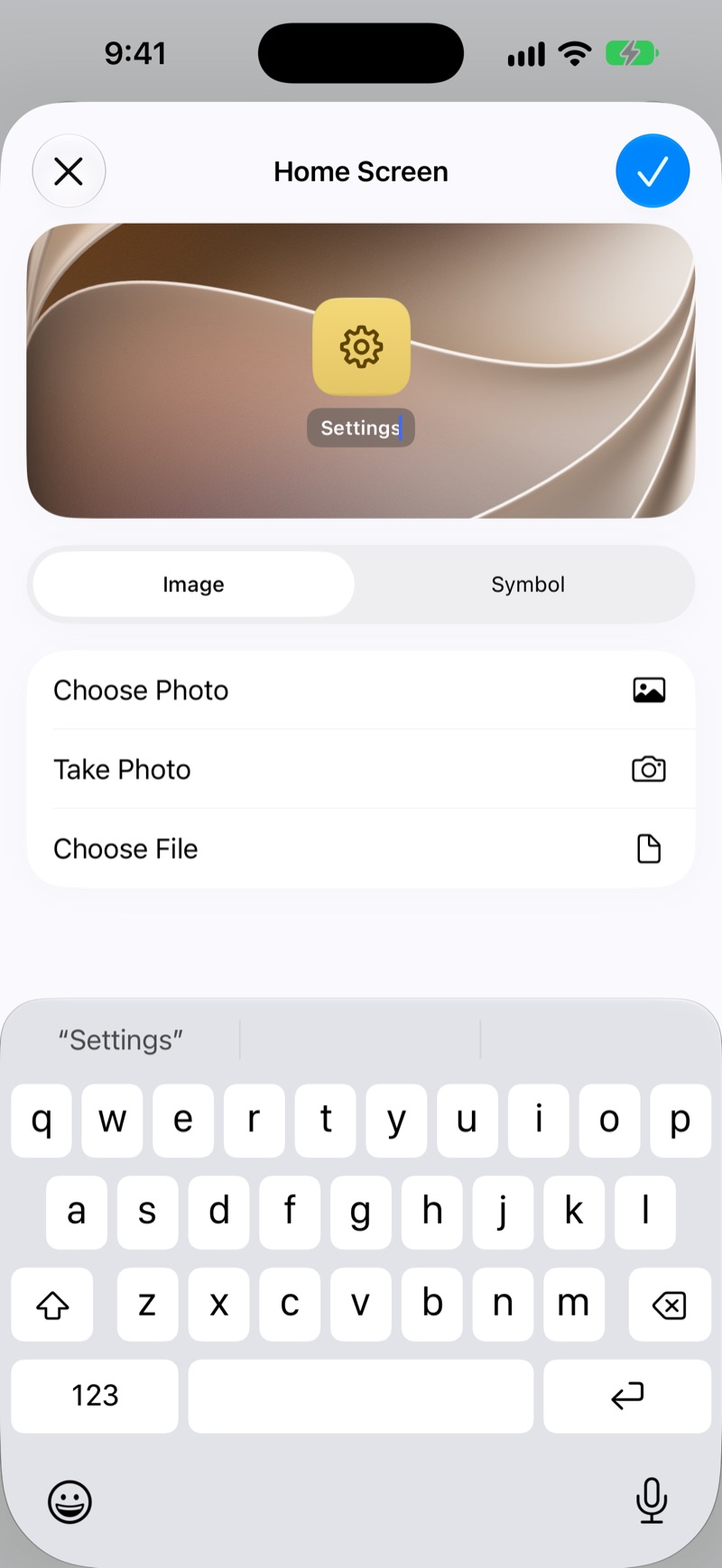
Tap the name under the icon, type the name you want, then tap the blue ✓ at the top.
-
Hide the original app
Long-press the original app on your Home Screen, tap Remove App, then Remove from Home Screen. It stays in your App Library.


Quick install (popular apps)
The Quick install folder has one file per group of apps, such as Built-in apps, Money and Travel: 12 groups and 115 popular apps in all. iOS calls each file a profile. Each file adds its group's icons in a few taps. Install only the groups for apps you have.
-
Open a group
In the Files app, open the Quick install folder and tap the group you want. iOS says “Profile Downloaded”; tap Close.
-
Open Settings
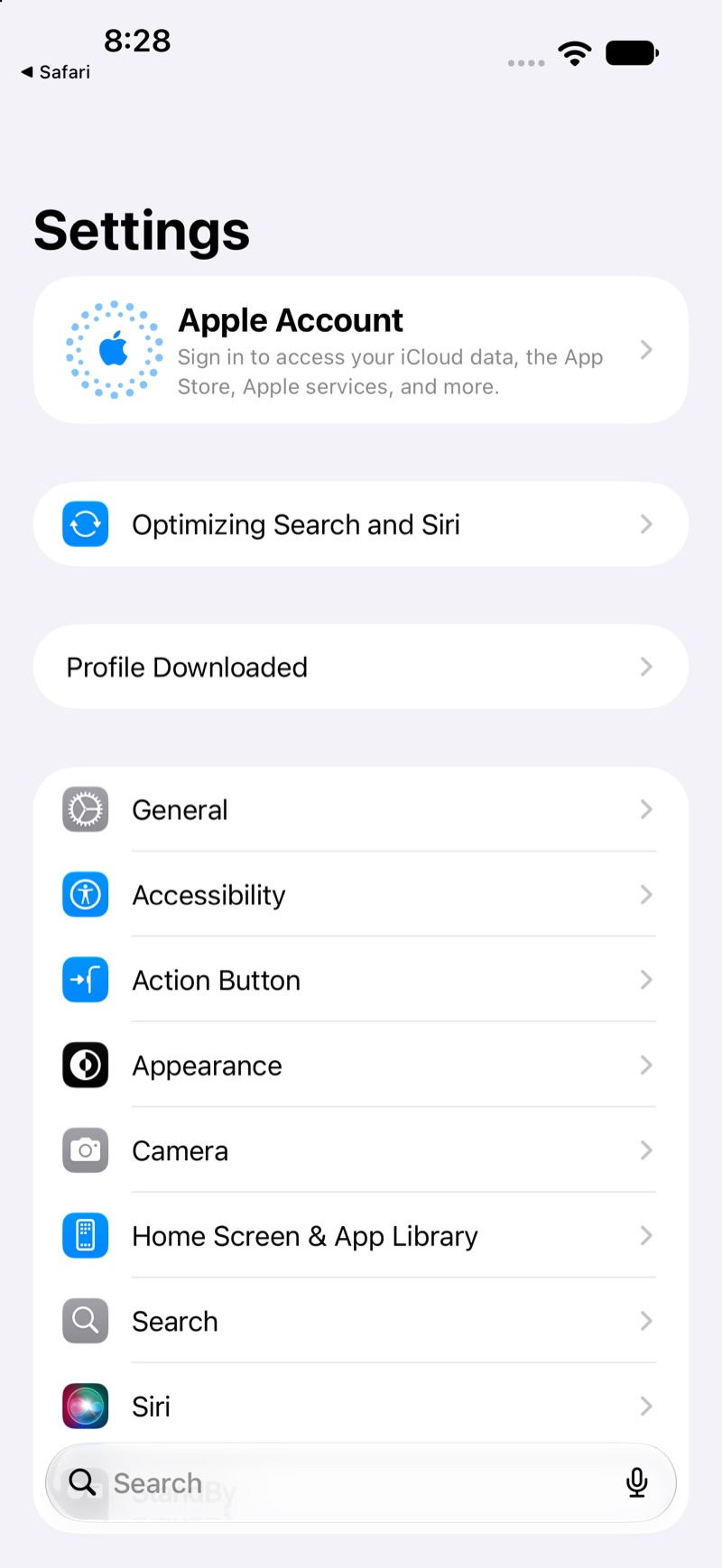
Open Settings and tap Profile Downloaded near the top. On iPad, it's in the sidebar.
-
Install
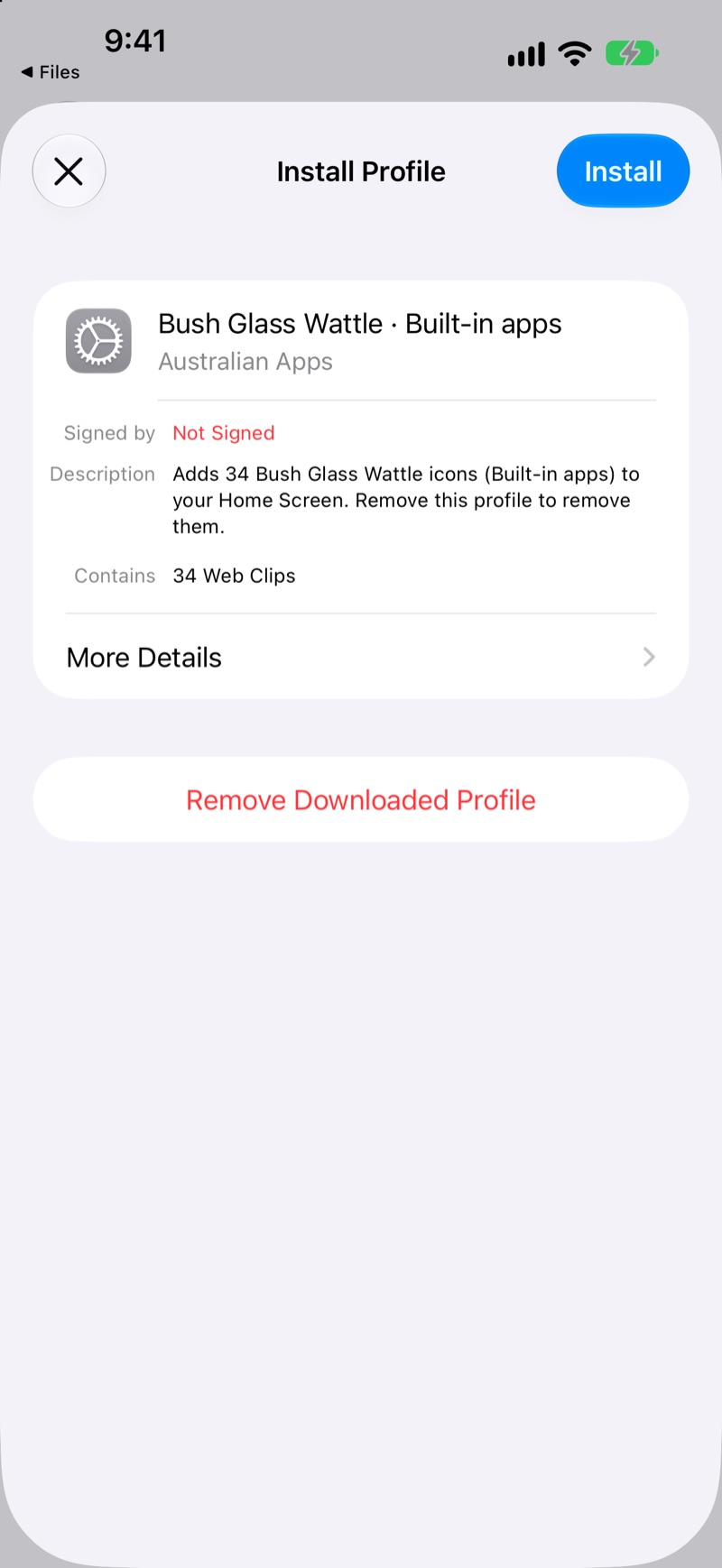
Tap Install and enter your passcode. iOS warns that the profile isn't signed; tap Install again, then once more to confirm.
-
Done
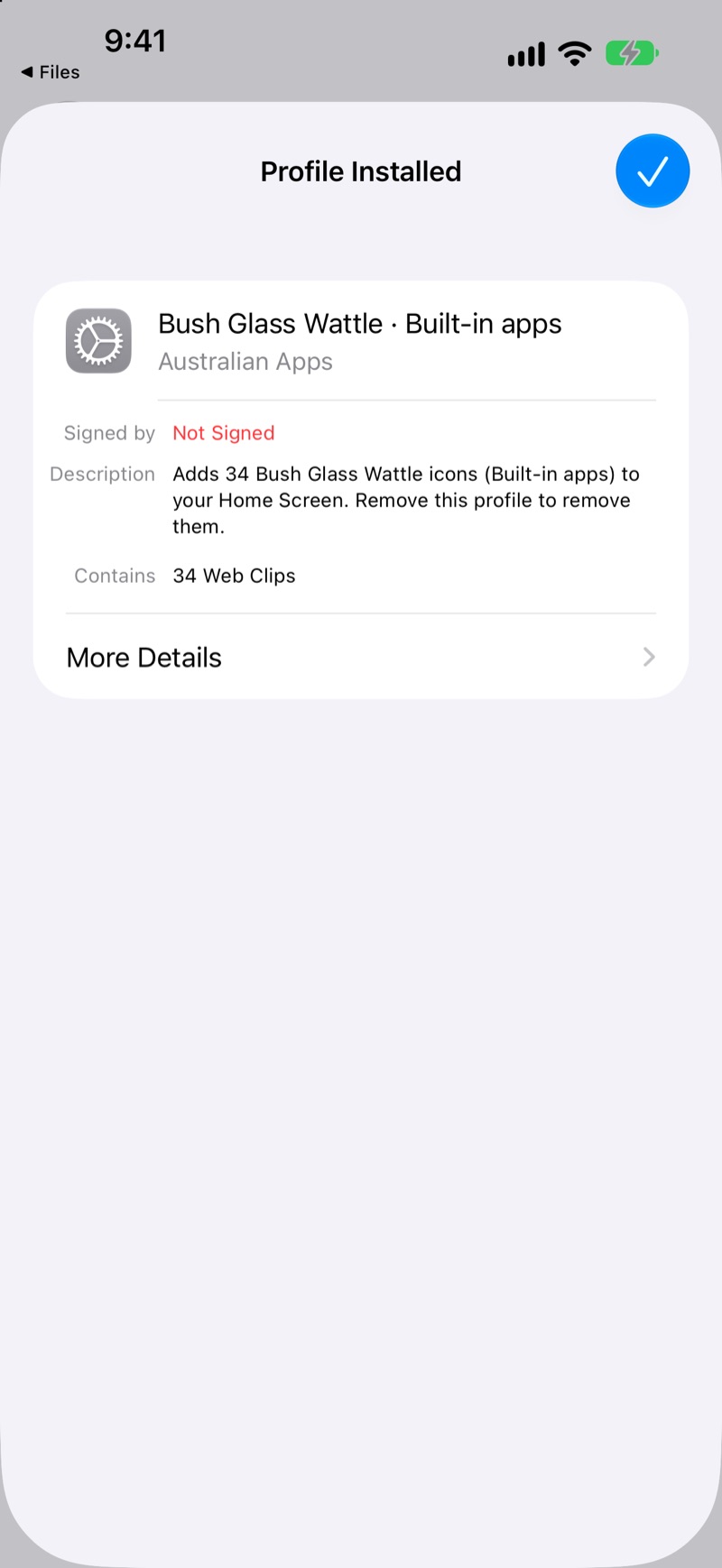
iOS confirms the profile is installed. Tap ✓.
-
Arrange your Home Screen
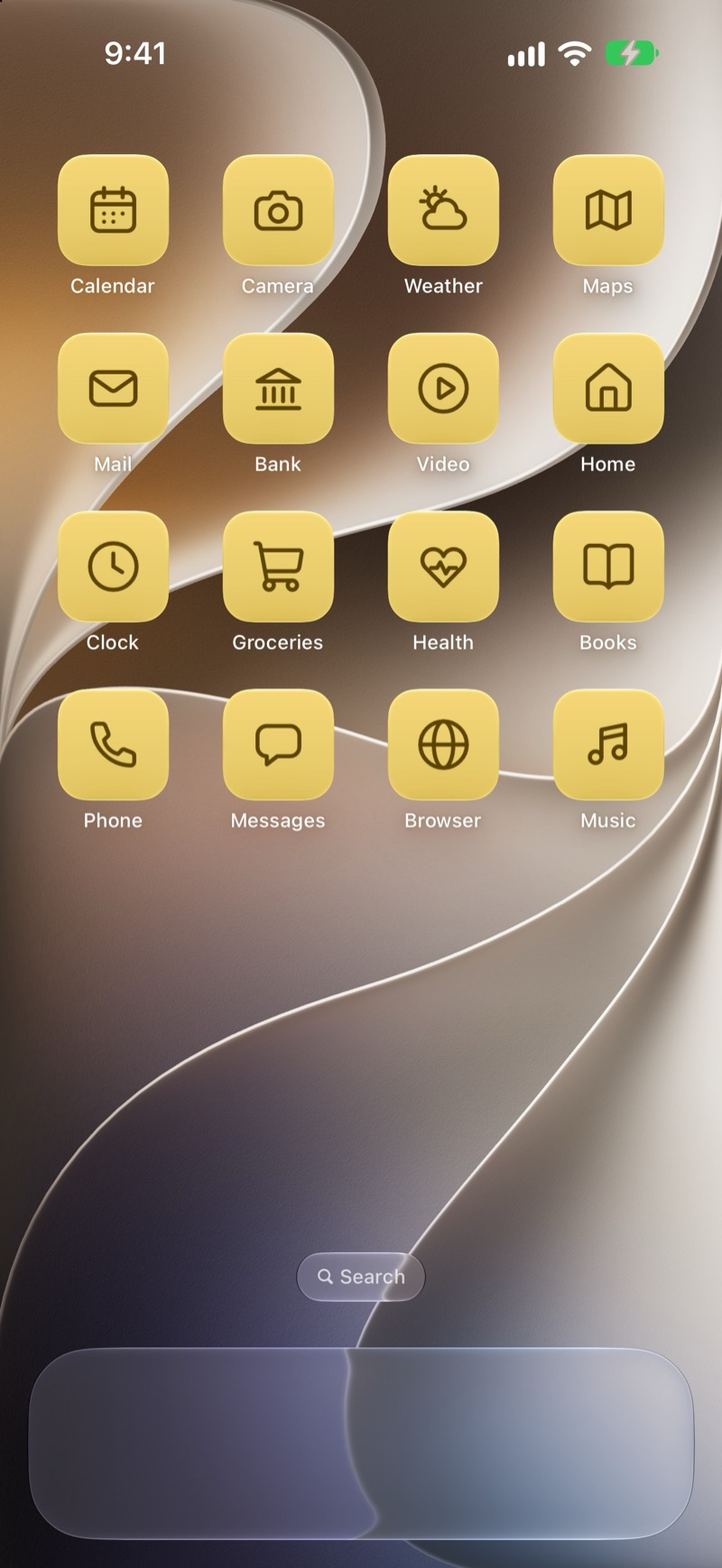
The new icons are on your last Home Screen page. Move them where you like, then hide the original apps (Shortcuts, step 8).


Good to know
- “Not Signed” is normal for this kind of file. It only means the profile isn't signed with a certificate. It adds icons and nothing else: no settings, no tracking.
- Safari opens for a moment when you tap a Quick install icon, then your app opens. That's how iOS handles these icons. If you'd rather avoid it, use Shortcuts for your favourite apps.
- Quick install covers 115 popular apps. For every other app, including Settings and Contacts, use Shortcuts. The app index in the guide marks which apps have Quick install.
- Only install groups for apps you have. If you tap an icon for an app that isn't on your device, Safari says the address is invalid; just delete that icon.
Wallpapers and widgets
-
Save the wallpaper
In Files, open a wallpaper from the Wallpapers folder, tap the share button, then Save Image.
-
Use as Wallpaper
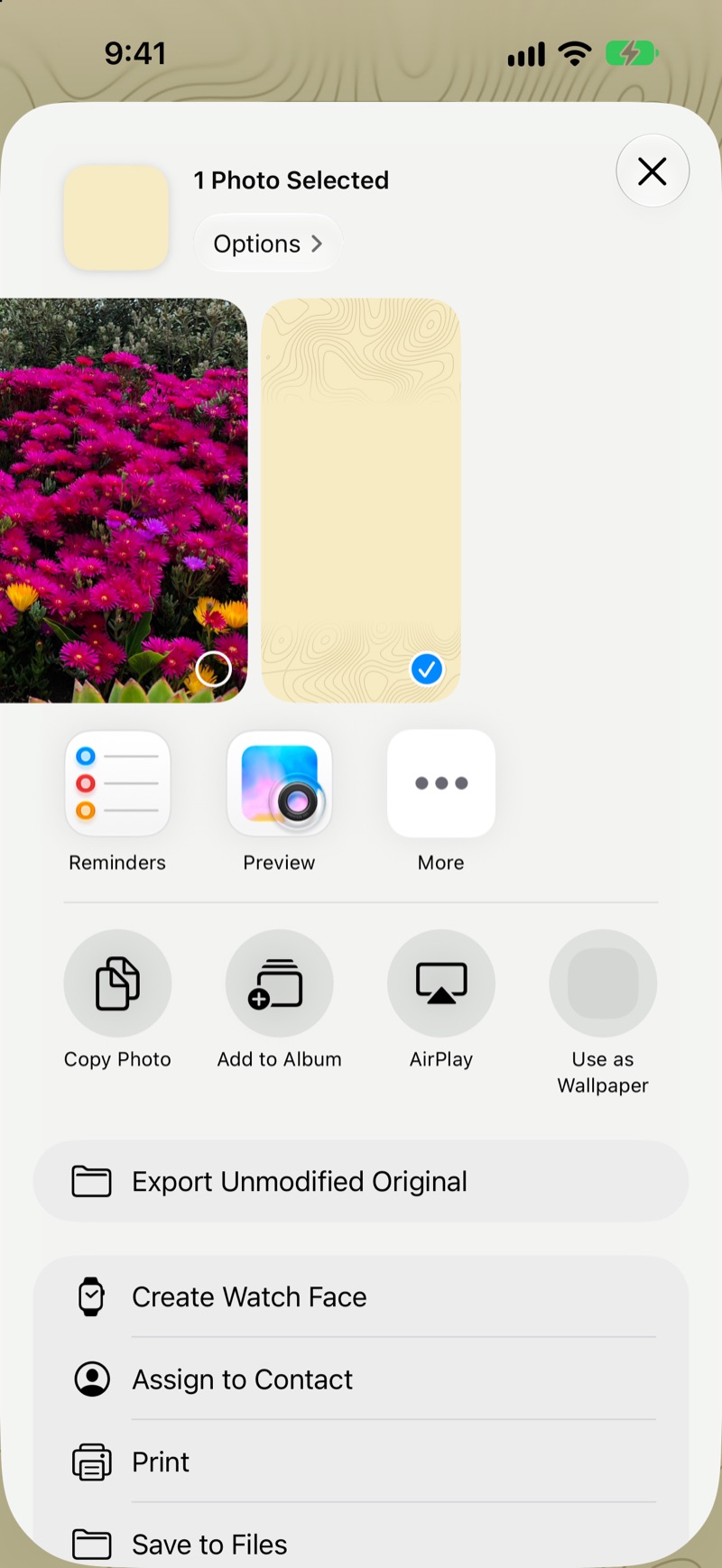
In Photos, open the wallpaper, tap the share button, then Use as Wallpaper.
-
Set it
Tap Add, then Set as Wallpaper Pair, or Customize Home Screen to pick a different Home Screen wallpaper.

Tip: the contour art sits at the top and bottom, with a calm band in the middle. Keep your icon rows in that band and the tiles look like glass floating on the page.
Widgets
The Widgets folder has 12 images for small, medium, large and extra-large widgets, in three styles. Show them with any photo-widget app from the App Store: add its widget, choose the matching size and pick the image.
Undo
Remove one icon or a whole Quick install group, then put your apps back from the App Library.
-
Remove one icon
Long-press the icon and tap Delete Bookmark.
-
Find a Quick install group
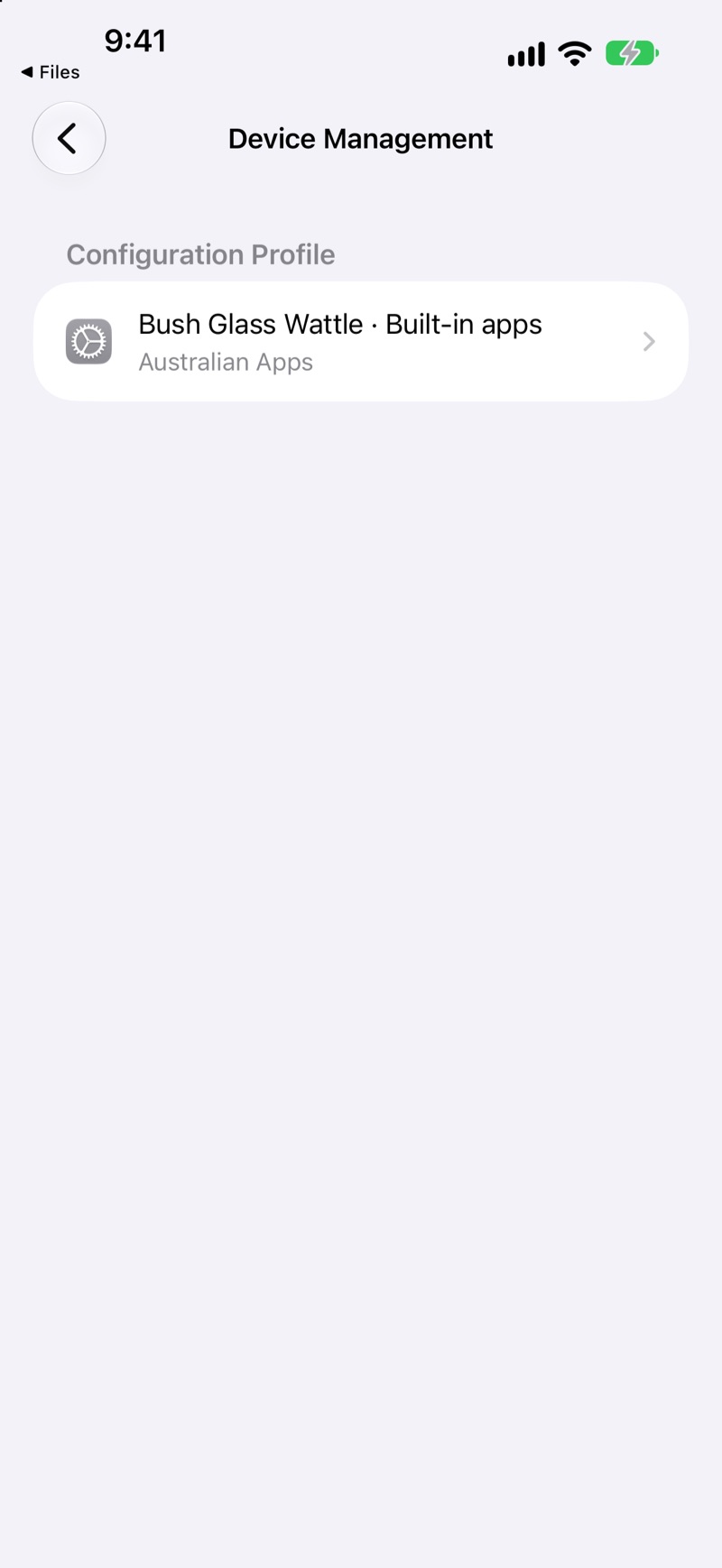
To remove a whole group, open Settings › General › VPN & Device Management and tap the Bush Glass profile.
-
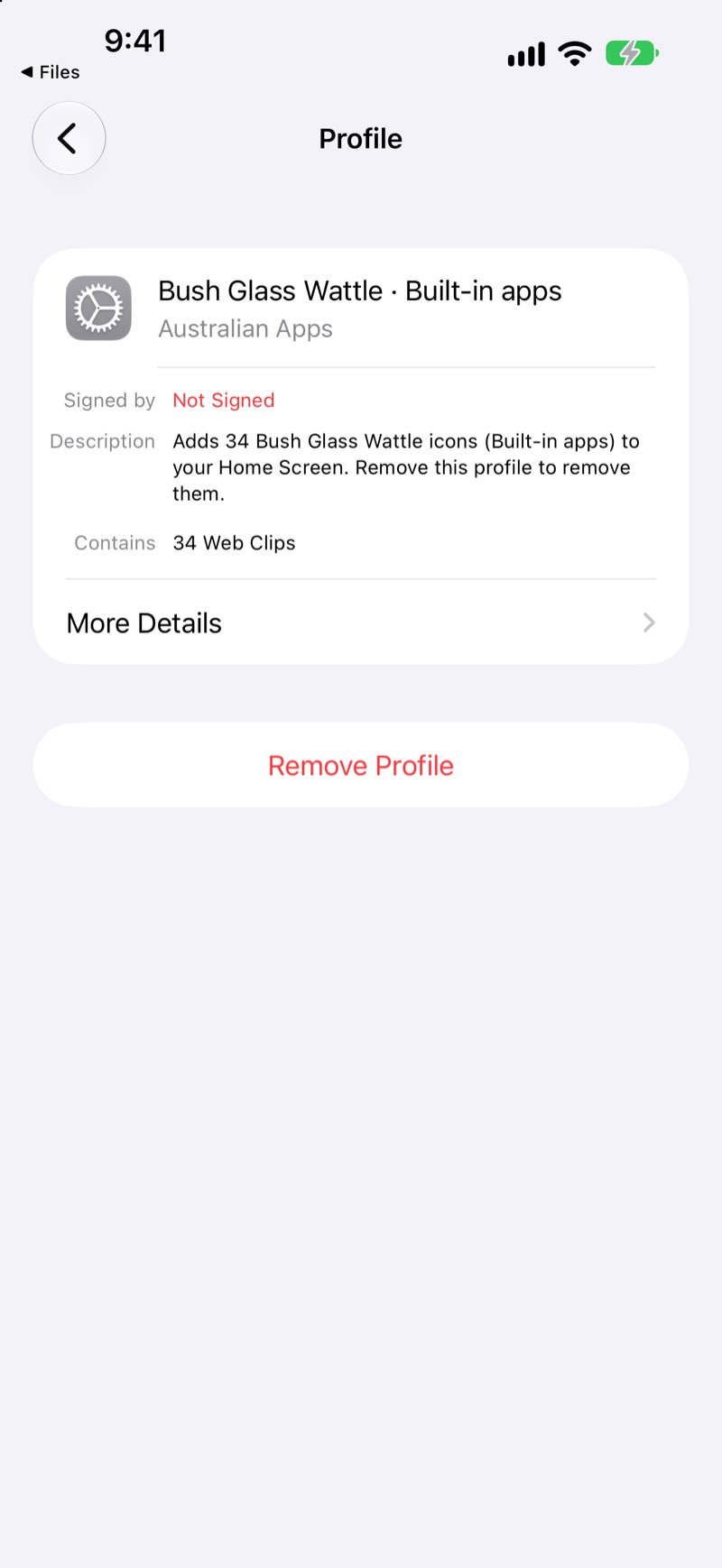
Remove Profile
Tap Remove Profile and confirm. That group's icons disappear.
-
Bring back your apps
Put the original apps back on your Home Screen from the App Library.


Questions
Why does a banner appear when I tap an icon?
That's iOS showing that a shortcut ran. It disappears by itself after a second or two.
Why don't my icons show notification badges?
iOS only shows badges on real app icons. Keep the original app in your App Library or in a folder and check badges there, or rely on notifications.
Why do my icons look grey or see-through?
Your Home Screen is set to Clear or Tinted, which recolours every icon, including these. Long-press an empty spot, tap Edit › Customize and choose Default to see your colourway. Dark keeps Quick install icons as they are but darkens Shortcuts icons.
What if an app I use isn't in the pack?
Use one of the 45 extras, or send us the app's name on Etsy or here. We make new icons on request, usually within 72 hours, and add them to the next free update.
Does it work on iPad?
Yes. The steps are the same, except that Profile Downloaded is in the Settings sidebar. Use the wallpapers in Wallpapers › iPad.
How do I get updates?
Updates are free. Download the pack again from Etsy.
Can I share the pack with a friend?
Please don't. The licence is for your own devices. Your friend can buy their own copy.
Still stuck?
Message us on Etsy, where you bought the pack, or send us a message here. Tell us your device, your colourway and the step you're on. If a file is faulty, we'll fix it or refund you.